Every screen, explained
Ten short walkthroughs of the real app. The phone stays with you as you read, showing the screen each chapter is about.
Basics
What are Wallets?
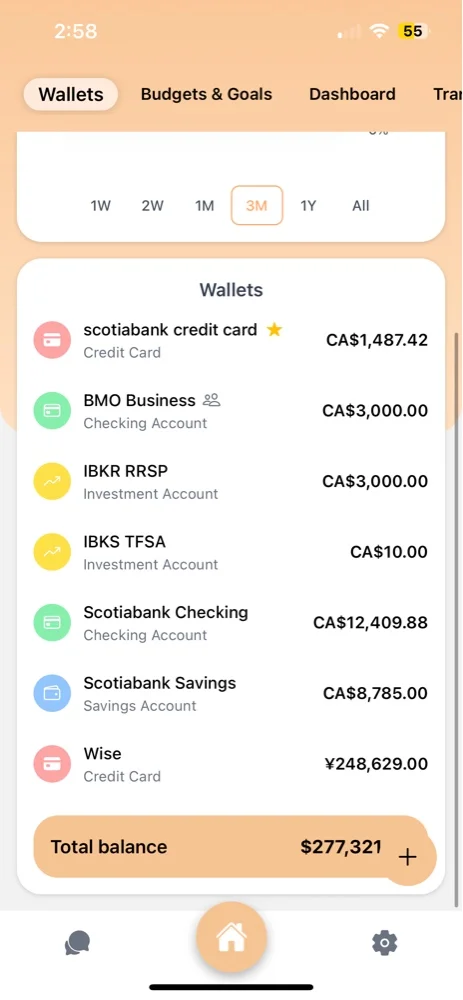
In Ciento, Wallets are the foundation for tracking your finances. They represent your real-world accounts
Types: chequing, savings, credit cards, cash, and investments.
Each wallet has a name, type, currency, and an initial balance. The app automatically calculates the current balance based on your transactions.
You can create multiple wallets and set one as your default for quick entry.
Basics
Shared Wallets
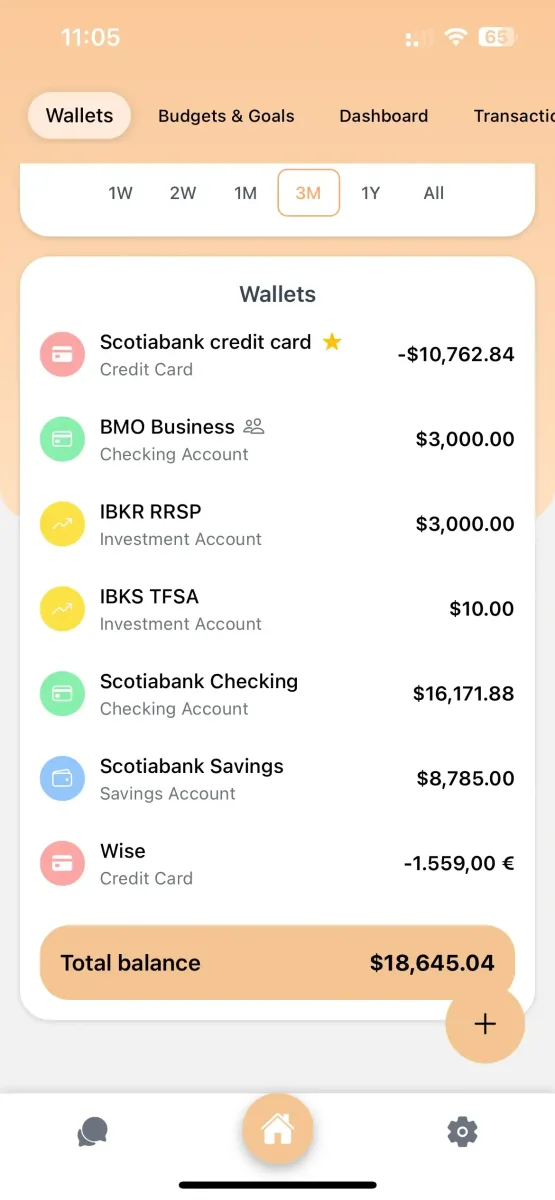
Shared Wallets let you collaborate on finances with whoever you want.
The owner invites members by email and assigns "admin" or "member" roles.
All members can view balances and add transactions, while admins can manage settings.
Ideal for joint accounts, household expenses, and shared savings goals.
Organization
What are Categories?
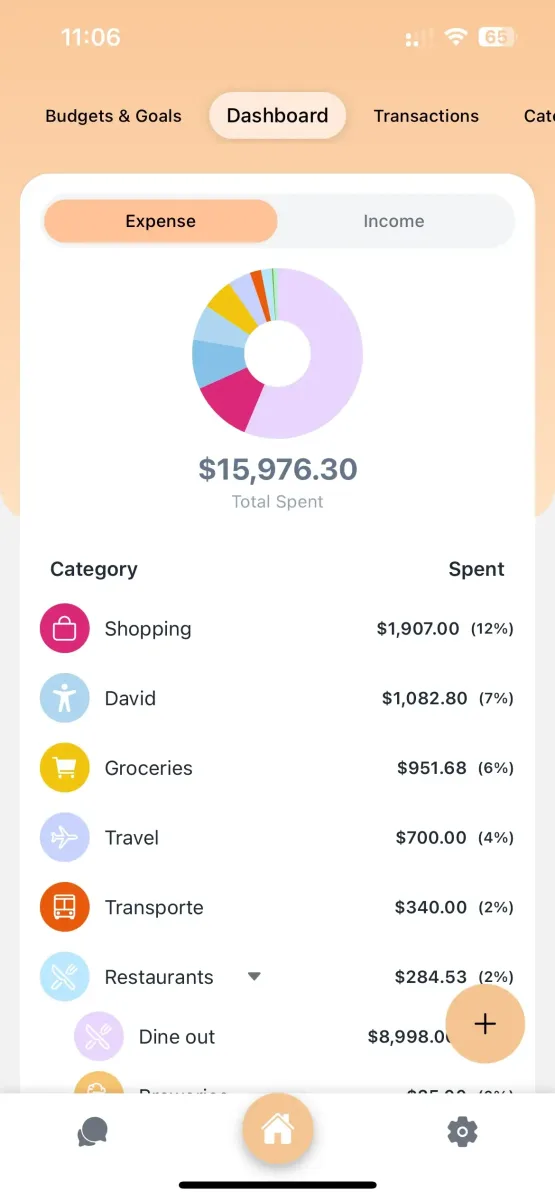
Categories help you organize all your transactions by type.
There are two main types: Income (e.g., Salary) and Expense (e.g., Food, Transport).
Each category has a name, icon, and color. Ciento includes defaults, but you can create your own.
For more detailed tracking, you can create Subcategories by assigning a "Parent Category".
For example, nest "Groceries" and "Restaurants" under the main "Food" category.
This structure provides deeper insights and allows for more specific budgeting at either level.
Basics
Understanding Transactions
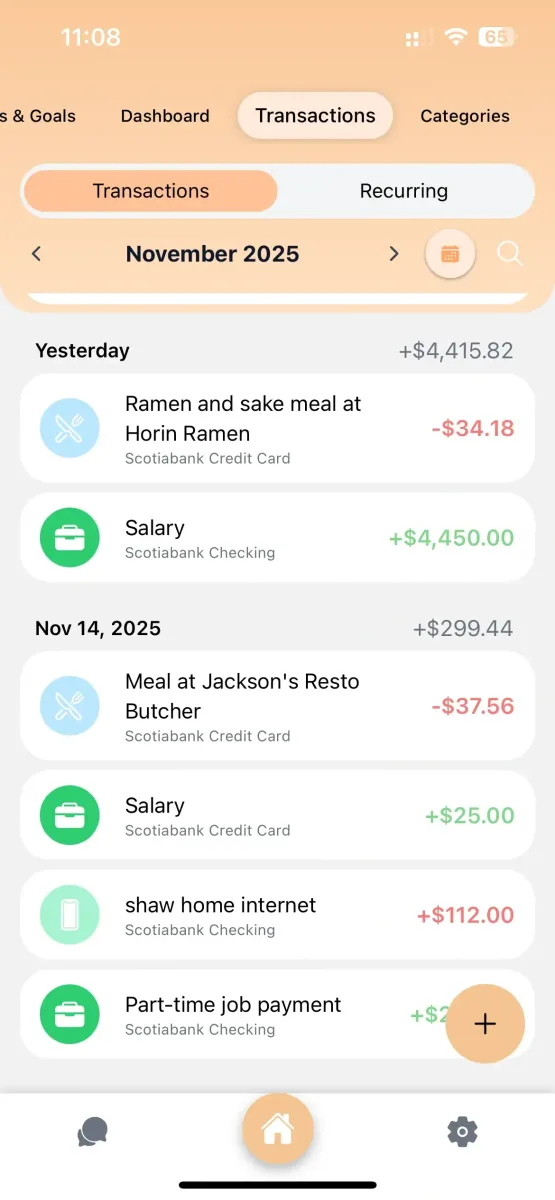
Transactions are the records of money moving in (Income), out (Expense), or between (Transfer) your wallets.
Each transaction includes an amount, date, and the wallet used.
Income and Expense transactions are also assigned a category for tracking.
You can add optional notes and attach photos, like receipts, for more detail.
Transactions automatically update your wallet balances and budget calculations.
Advanced
Recurring Transactions
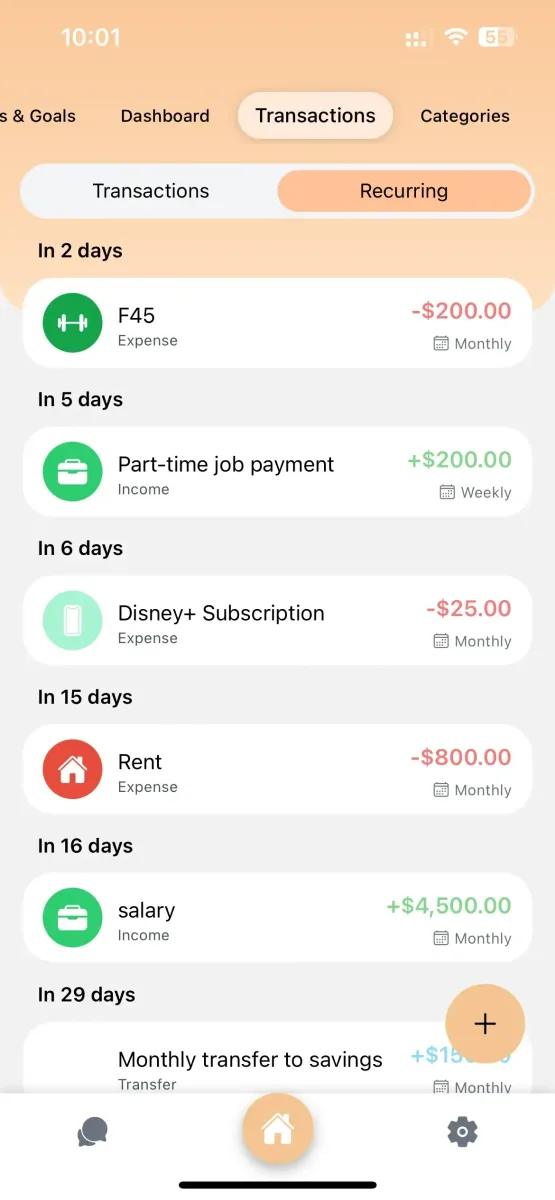
Recurring transactions automatically log your regular income or expenses, like salaries, rent, or subscriptions.
To create one, set the amount, category, and wallet, just like a normal transaction.
Choose a frequency (e.g., daily, weekly, monthly), a start date, and an optional end date.
The app will then automatically create these transactions on the schedule you set.
You can pause, edit, or delete recurring transactions at any time from the "Recurring" tab.
Basics
Wallet Transfers
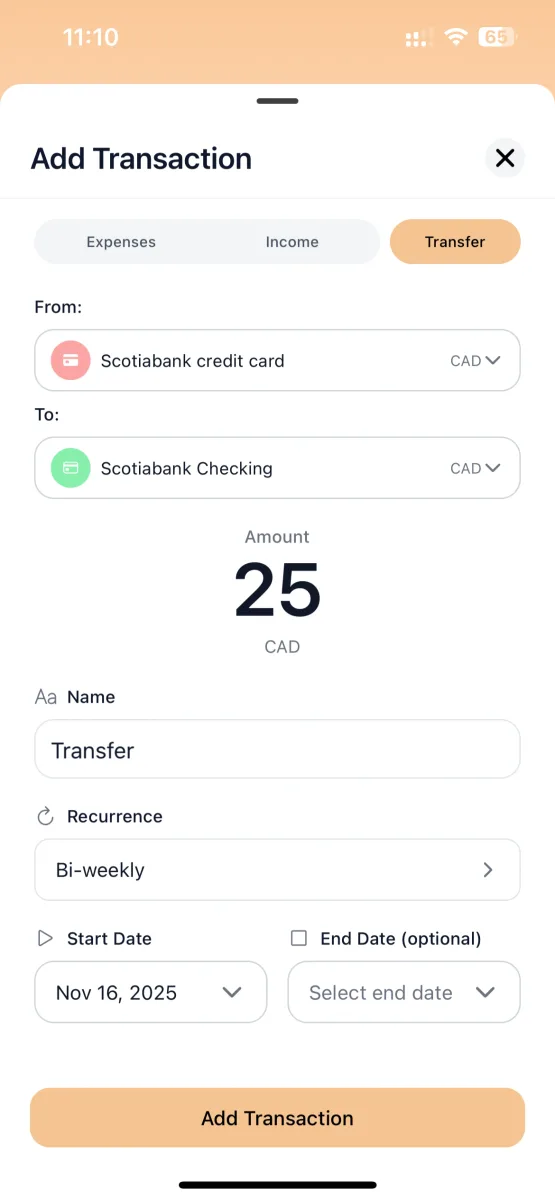
Transfers record money moved between your wallets, like paying a credit card or moving funds to savings.
A transfer creates both an expense from the source wallet and an income to the destination wallet.
Because the money just moves, transfers do not affect your overall net worth (net effect is zero).
If wallets have different currencies, you can specify the exchange rate for an accurate conversion.
Planning
What are Budgets?
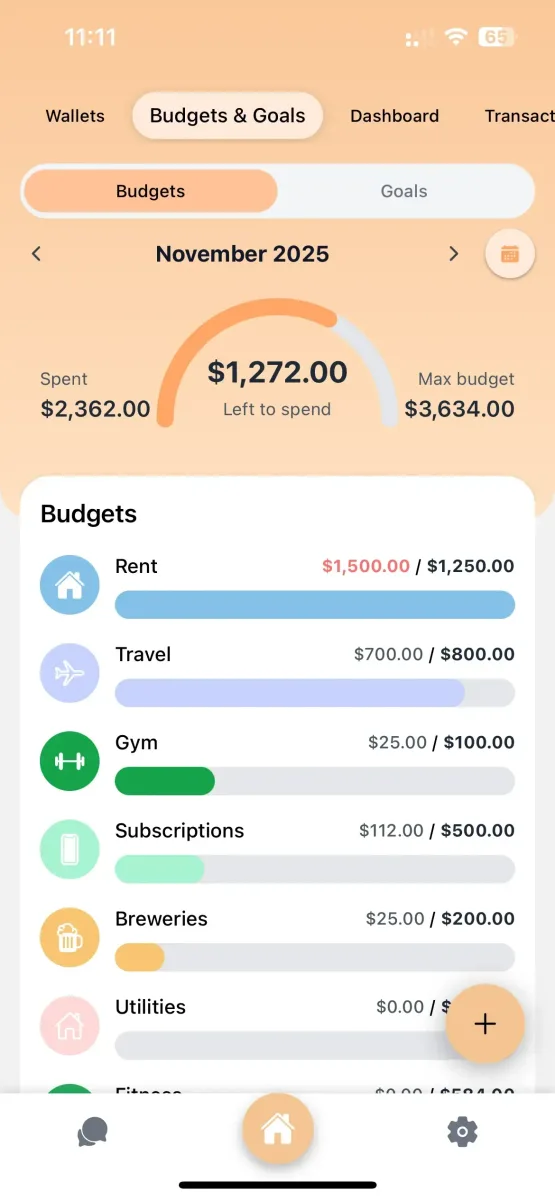
Budgets help you plan and control your spending by setting limits for specific categories.
Create one by setting a limit (e.g., $500 for Food) for a time period (daily, weekly, monthly, etc.).
As you add expenses, the app tracks your progress in real-time, showing "Amount Spent / Budget Amount".
Budgets can be set for parent categories (which include subcategory spending) or for individual subcategories.
Visual progress bars and color codes (green, yellow, red) show how much you’ve used, with notifications.
The budget automatically resets at the start of each new period (e.g., on the 1st of the month).
Planning
Financial Goals
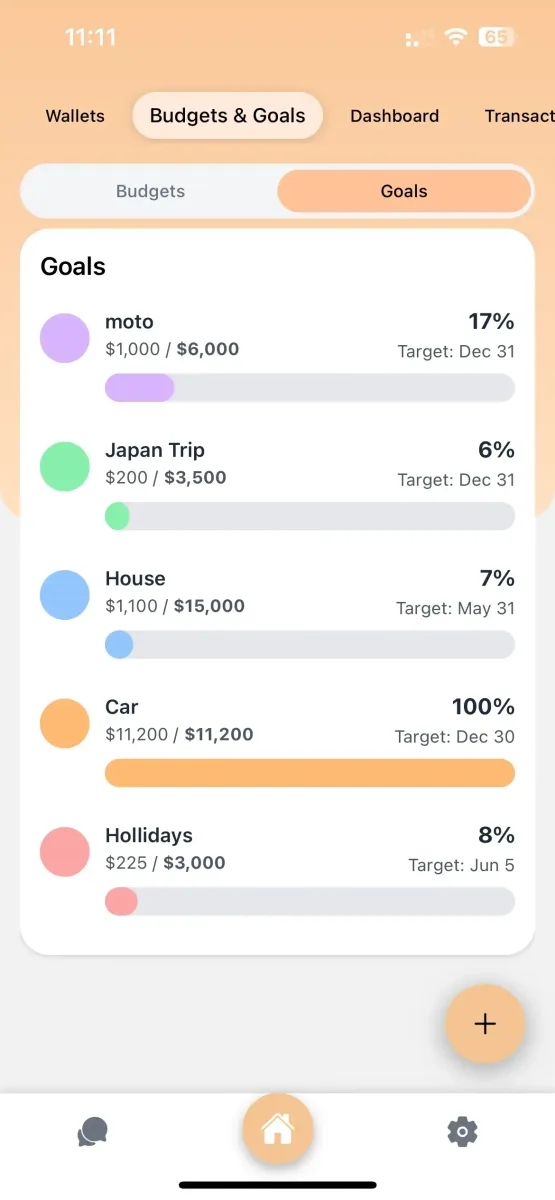
Financial Goals help you save for specific targets, from short-term (like a vacation) to long-term (like a down payment).
Create a goal by setting a name, a target amount, and an optional target date.
You can also log your "current amount" if you have already started saving for it.
A visual progress bar shows your percentage complete, and the app can calculate the monthly savings needed to reach your goal on time.
Advanced
Multi-Currency Support
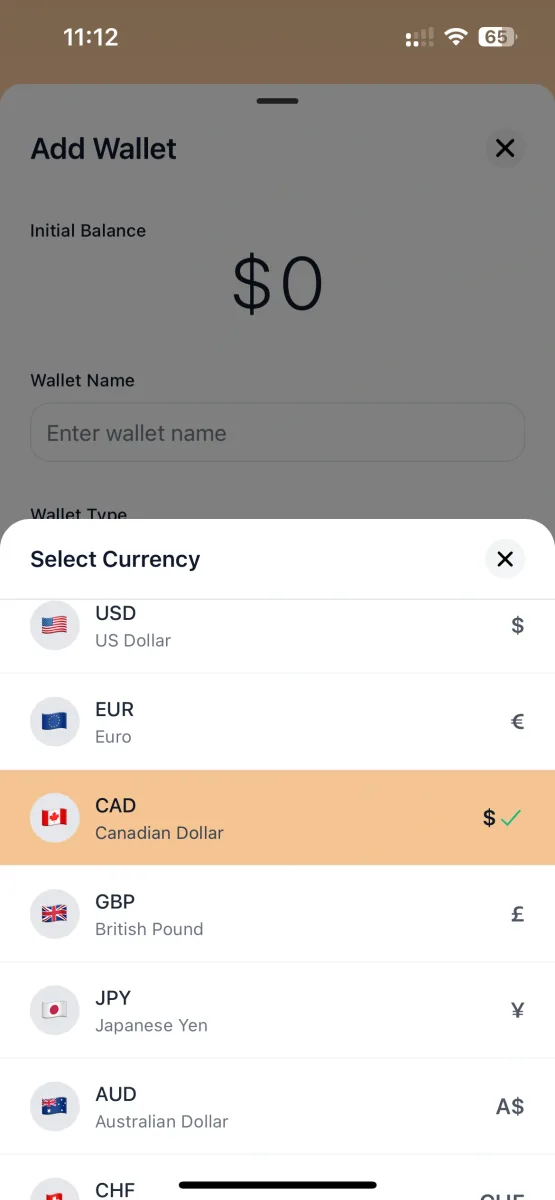
Ciento supports multiple currencies, perfect for international users or travelers.
Each wallet has its own currency (e.g., USD, EUR, JPY).
Set a "preferred currency," and the dashboard will convert and display all totals in that currency.
Exchange rates update daily for accurate overviews, while historical rates are saved.
You can easily transfer funds between wallets with different currencies by specifying the exchange rate.
Basics
Understanding Your Dashboard
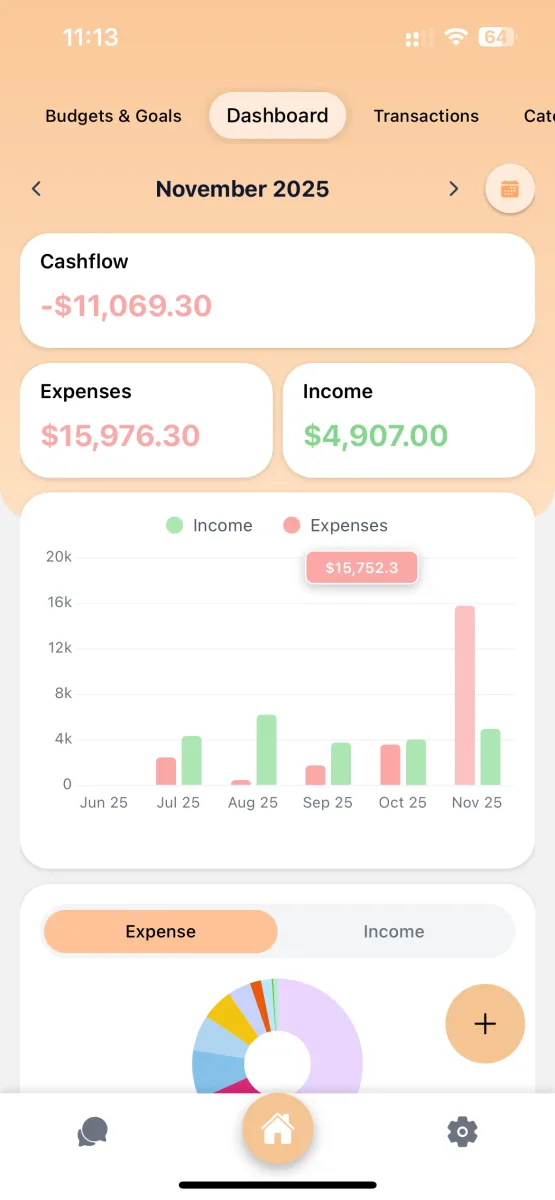
The Dashboard is your financial command center, showing a high-level overview of your finances.
It displays key sections like your Net Worth, Income vs. Expenses, and real-time Budget Progress.
See recent transactions and visual charts, like a pie chart for spending by category.
You can filter all data by time periods (e.g., Daily, Weekly, Monthly) and quickly add new transactions.
Start logging in seconds
Send a voice note, snap a photo of the receipt, or message Ciento on WhatsApp. It does the filing.
Get Ciento freeFree to start · No bank connection required · iOS and Android